Your iPhone is more useful than the usual calls, WhatsApp, camera, Instagram, and banking apps. The best part is that many handy tools are already built into iOS, so you do not need to fill your storage with random scanner, measuring, privacy, or shortcut apps.
This updated guide keeps the original idea: five cool iPhone features most people overlook. It also adds 2026 buying context, because these features matter when you are deciding whether to keep an older iPhone, buy a clean used model, or upgrade to a newer one. If you are comparing phones generally, start with Ogabassey's smartphones category. If you are still using an older Apple device, our iPhone 13 review is a useful reference point for what still feels modern.
Who this is for
This article is for iPhone owners who want more value from the phone they already have, and for buyers checking whether an iPhone is still worth the money in 2026. These features are especially useful if you are buying used or refurbished, because the small everyday tools can matter as much as headline specs like camera megapixels or display brightness.
Most of the tips below work on many recent iPhones, but exact menus can vary by iOS version, region, accessibility settings, and model. Before you judge a used iPhone, update iOS if the model still supports it, test Face ID or Touch ID, check battery health, confirm the camera and speakers work, and make sure the phone is not iCloud locked.
1. Use Back Tap for quick actions
Back Tap lets you double-tap or triple-tap the back of your iPhone to trigger an action. It is one of those features that feels small until you set it up for something you do every day.
You can use Back Tap to take a screenshot, open Control Centre, launch the camera, turn on the torch, start an accessibility shortcut, or run a Shortcuts automation. If you often need a fast flashlight during power cuts, or you take screenshots for receipts and chats, this can save time.
How to turn it on: go to Settings > Accessibility > Touch > Back Tap, then choose an action for Double Tap or Triple Tap.
Buying context: Back Tap is helpful on older supported iPhones because it adds shortcut convenience without needing a new AI-focused model. If you are buying a phone for a parent, student, rider, or small business owner, shortcuts like torch, screenshot, camera, and magnifier are practical everyday wins.
2. Scan documents without a third-party app
Your iPhone can scan documents directly inside Notes. This is useful for ID cards, school assignments, receipts, signed forms, handwritten notes, guarantor documents, and office paperwork. You can crop the scan, adjust it, save it as a PDF, and share it without downloading a separate scanner app.
How to use it: open Notes, create or open a note, tap the camera or attachment button, choose Scan Documents, then hold the phone over the paper. The iPhone can detect the edges automatically, but you can also adjust the corners manually before saving.
Trust note: using the built-in scanner reduces the need to give unknown apps access to your files and camera. That matters if you scan bank slips, IDs, work records, or private documents.
3. Use the Measure app as a level tool
The Measure app is not only for estimating dimensions. It also has a level tool that helps you check whether a shelf, frame, table, or flat surface is straight. For small DIY tasks at home or in a shop, it can replace a basic spirit level in a pinch.
How to use it: open Measure, tap Level, then place the iPhone against or on the surface you want to check. The screen shows the angle and changes when the surface is level.
Trade-off: this is not a replacement for professional measuring equipment. Phone cases, camera bumps, uneven surfaces, and sensor calibration can affect accuracy. For hanging a frame or checking a table, it is fine. For construction or technical work, use proper tools.
4. Lock hidden and recently deleted photos
The Photos app can hide selected photos and keep the Hidden album protected with Face ID, Touch ID, or your passcode. This is useful for sensitive screenshots, ID images, payment receipts, surprise gift photos, or anything you do not want showing up while someone is casually swiping through your gallery.
How to hide a photo: open Photos, select the photo or video, tap the more options button, then choose Hide. To check the lock setting, go to Settings > Photos, depending on your iOS version, and make sure biometric protection for hidden photos is enabled.
Privacy warning: hiding a photo is not the same as legal-grade secure storage. Anyone who knows your passcode may still be able to unlock protected areas. For very sensitive records, use strong device security, avoid sharing your passcode, and keep important documents backed up safely.
5. Start hands-free camera moments with Siri and Voice Control
Siri can open the camera quickly when your hands are busy. Say something like “Hey Siri, take a photo” and the Camera app will open. On many setups, you still need to trigger the shutter yourself, but you can combine this with accessibility features such as Voice Control for more hands-free control.
For example, Voice Control can help you interact with the screen by speaking commands. Some users also use the volume button as a shutter shortcut, which is useful when the iPhone is on a tripod, leaning against a surface, or connected to an accessory.
Best use case: family photos, content creation, cooking videos, workout clips, or quick group shots where you do not want to run back and forth after setting a timer.
Key specs and buying context in 2026
If you are buying an iPhone mainly for everyday use, do not judge it only by the name. Check the full ownership picture: software support, battery health, storage, camera needs, network fit, warranty, and repairability.
- Price band: a clean older iPhone can be better value than a cheap new phone if it has good battery health, enough storage, and no iCloud or repair issues.
- Battery and charging: battery health matters more than small feature tricks. A used iPhone with weak battery health may feel frustrating even if the camera and display are fine.
- Camera and video: iPhones remain strong for video, social media, scanning, and consistent photos. If you create content, test stabilization, microphone quality, and low-light performance before paying.
- Storage: avoid very low storage if you shoot lots of video, keep WhatsApp media, or install large apps. Built-in tools help, but they do not fix a phone that is constantly full.
- 5G and network fit: 5G is useful in parts of Lagos, Abuja, Port Harcourt, and other covered areas, but it is not always worth overpaying for if your daily locations still rely mostly on strong 4G.
- Software update horizon: newer models usually give you a longer iOS runway, better security updates, and newer features. This matters if you plan to keep the phone for several years.
- Originality and warranty: check Face ID, True Tone, camera warnings, battery service messages, and seller return terms. Warranty and return policy can be more valuable than a small discount.
- Nigeria repairability: common iPhone models are easier to service than rare variants. Before buying, consider screen, battery, charging port, and camera repair availability in your area.
Trade-offs
These tricks make your iPhone more useful, but they do not magically make every iPhone a good buy. A phone with poor battery health, damaged Face ID, weak speakers, fake parts, or no software future can still be a bad deal. Also, some features depend on iOS version and settings, so two iPhones with the same name may not feel identical if one is outdated or poorly maintained.
There is also a storage and privacy angle. Built-in tools reduce the need for extra apps, which can save space and limit data sharing. But if you rely heavily on cloud storage, shared albums, or third-party backup tools, you still need to understand where your files are going and who has access.
Alternatives to consider
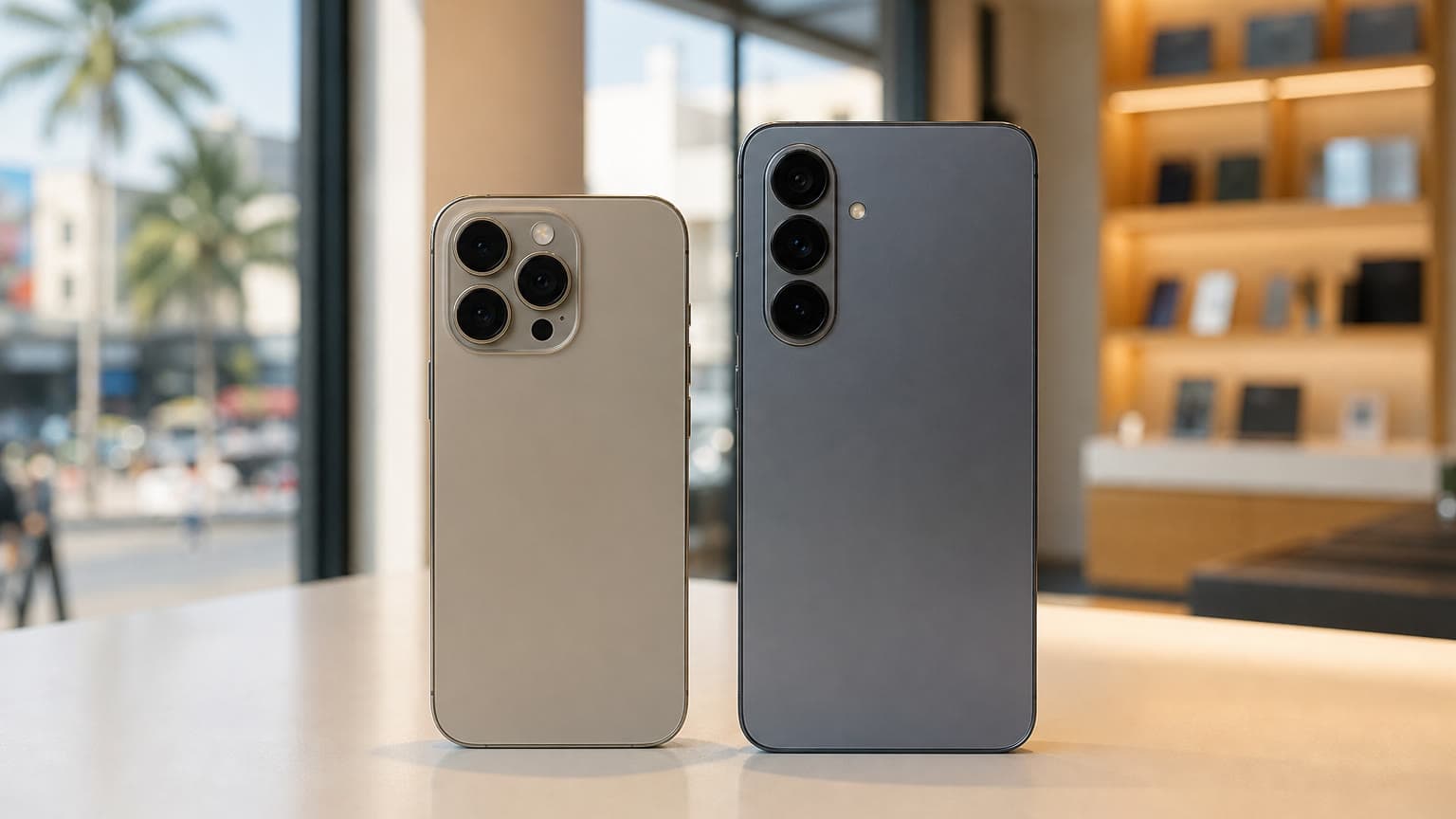
If you like the iPhone ecosystem, compare older and newer iPhones based on your budget instead of chasing the latest model automatically. A well-kept iPhone 13, 14, or 15 series device may serve many users better than stretching for a newer Pro model with too little storage or no warranty.
If you are open to Android, Samsung flagships offer strong multitasking, display quality, zoom cameras, and customization. You can also compare similar hidden features in Ogabassey's guide to things your Samsung flagship can do. For tablet users, the related iPad tips guide covers Apple features on a bigger screen.
There is also another Ogabassey article with overlapping intent: 8 things you did not know your iPhone can do. This five-tip version should stay focused on quick, practical everyday tools, while the broader eight-tip article can serve readers who want a longer list.
Verdict
Your iPhone can do more than most owners use daily. Back Tap, document scanning, the level tool, locked hidden photos, and hands-free camera shortcuts are practical features that can save time, reduce app clutter, and make an older iPhone feel more useful in 2026.
For buyers, the lesson is simple: features are only part of the value. Before paying for any iPhone, check condition, battery health, storage, software support, network compatibility, warranty, and repair options. A clean, supported iPhone with enough storage is usually a smarter buy than a flashy model with hidden faults.
Sources