People still tell new creators to “just get an iPhone,” but that advice is too narrow in 2026. A recent Samsung Galaxy phone can be a serious camera, editing, planning, and publishing tool if you set it up properly. The real difference is not the logo on the back of the phone; it is whether your device has the camera modes, storage, battery life, software support, and accessories your workflow actually needs.
This guide keeps the promise of the original article: you can start creating strong content with the Samsung phone you already own. It also adds the buyer context that matters now: which Galaxy features are worth using, where Samsung still has trade-offs, when an upgrade makes sense, and which alternatives deserve a look before you spend money.
Who This Is For
This article is for TikTok, Instagram, YouTube Shorts, YouTube, small business, church, event, real estate, food, beauty, gaming, and classroom creators who want to shoot and edit more consistently from a Samsung phone. It is especially useful if you own a Galaxy S, Galaxy Z, or recent Galaxy A device and want better results without buying a full camera kit.
If your main problem is blurry footage, weak audio, low storage, overheating, or lag while editing, fix the workflow before blaming the phone. Ogabassey’s guide to fixing a lagging smartphone is worth reading before you replace a device that may only need cleanup, storage management, or a battery check.
Start With The Camera Modes That Actually Matter
Samsung’s advantage is control. On many Galaxy models, the Camera app gives you more manual options than a beginner expects, and that matters when you are filming in mixed lighting, shooting product videos, or trying to keep skin tones consistent across clips.
- Pro Photo and Pro Video: Use these when automatic exposure keeps changing during a shot. Lock white balance, focus, shutter speed, and ISO so your clip looks intentional instead of jumpy.
- 4K video: For most social content, 4K at 30fps is still the sweet spot. It gives you room to crop for vertical posts without making files as heavy as 8K.
- 8K video: Some flagship Galaxy S models support 8K recording. Use it for controlled shots where you need cropping flexibility, not for every clip. It uses more storage and can be harder to edit on older phones.
- Super Steady: Use this for walking shots, behind-the-scenes clips, and handheld event coverage. It can reduce shake, but it may crop the image and perform best in good light.
- Single Take: Helpful for moments you cannot repeat, such as events, product reveals, family clips, or quick social posts. It can generate multiple outputs from one capture session.
- Director’s View or multi-camera tools where available: Useful for reactions, tutorials, and walk-throughs when you need front and rear camera context in one session.
For more camera-specific ideas, Ogabassey’s companion guide, Unleash Your Samsung Camera, goes deeper into Instagram, YouTube, and TikTok shooting habits.
Key Specs And Buying Context In 2026
If you are buying a Samsung phone mainly for content creation, do not shop by megapixels alone. Look at the whole workflow: camera quality, stabilization, display brightness, storage, chipset performance, battery health, software support, and accessory compatibility.
- Storage: Choose at least 256GB if you shoot 4K often. 128GB can work for light creators, but it fills quickly with raw clips, CapCut exports, offline music, and duplicate drafts.
- RAM and processor: Heavy editing, AI tools, multi-layer timelines, and 4K exports benefit from flagship-class chips. A Galaxy A phone can be enough for simple Reels, but Galaxy S and Ultra models are better for sustained editing.
- Display: Samsung’s AMOLED screens are excellent for previewing color and contrast, but always check your final post on another display before judging exposure.
- Battery and charging: Filming, screen brightness, mobile data, and editing drain power quickly. For event creators, a power bank is often a better value upgrade than a new phone.
- Software support: Recent flagship Galaxy devices have stronger long-term update promises than older Android phones. That matters if you plan to keep the phone for several years and rely on app compatibility.
- Warranty and condition: New, certified renewed, and used devices have different warranty and return expectations. If you buy pre-owned, inspect battery health, camera glass, charging port, microphone quality, and whether the phone is genuine. Ogabassey’s fake Samsung device guide is useful before you pay.
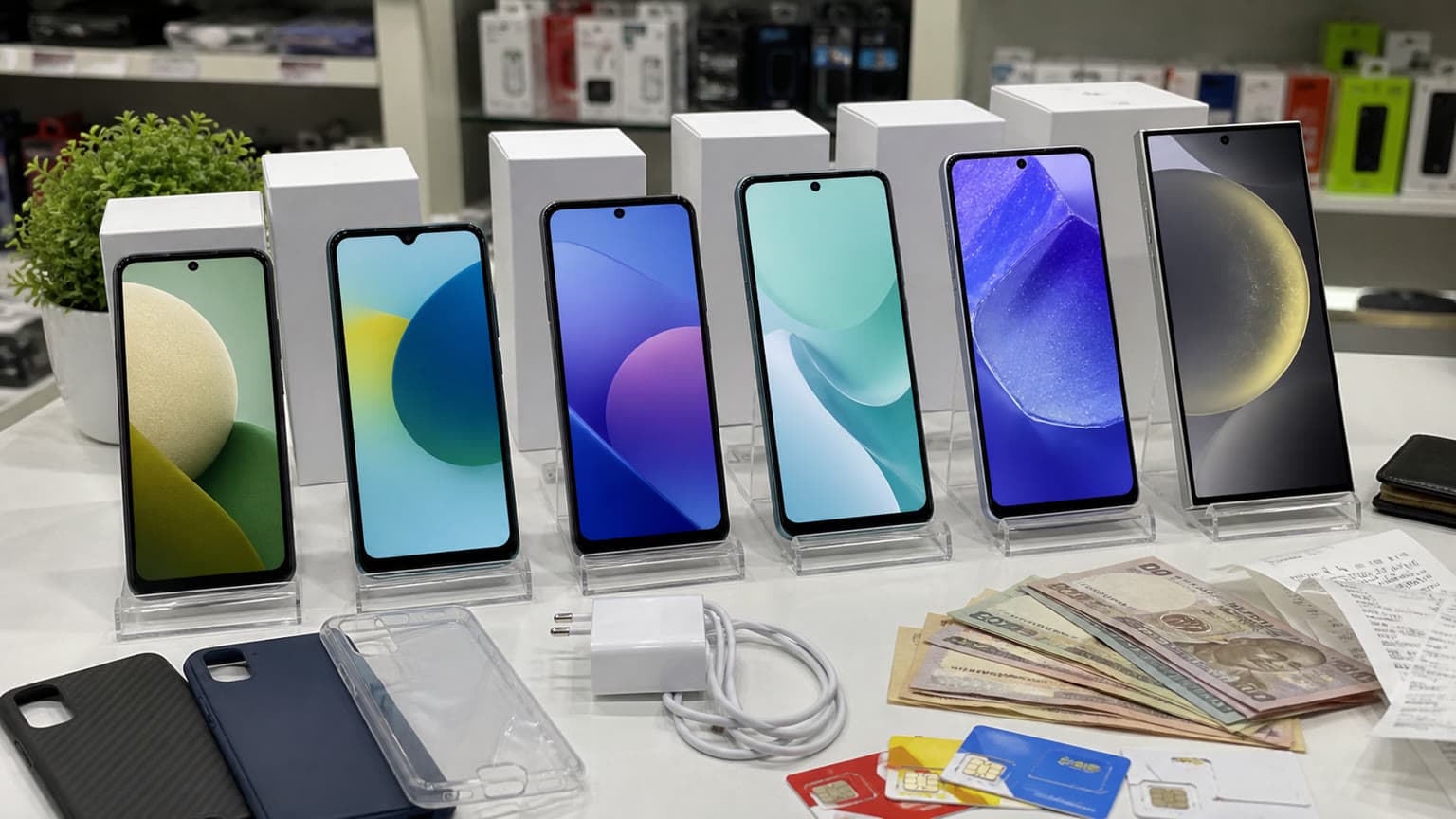
Value is the big question. A new Ultra-class Galaxy can be expensive, and not every creator needs one. If your content is mostly talking-head clips, product shots, simple edits, and social scheduling, a recent Galaxy S FE, older Galaxy S flagship, or well-kept Galaxy A model may be the smarter buy. If you film weddings, live events, paid client work, or long 4K sessions, the stronger camera system, brighter display, faster chip, and larger storage options on higher-end Galaxy S models become easier to justify.
Plan Content With Samsung Notes, S Pen, And Your Galaxy Ecosystem
The camera is only one part of content creation. Planning is what keeps you from wasting time. Samsung Notes is useful for shot lists, hooks, captions, client ideas, thumbnail sketches, and repeatable posting checklists. If you use a Galaxy Note or S Ultra model with an S Pen, storyboarding and annotating frames feels much faster than typing everything.
Galaxy ecosystem features can also reduce friction. Galaxy Buds can help you monitor audio while recording. A Galaxy Tab can work as a script screen, mood board, or second device for checking comments while you edit. A Galaxy Book or Windows PC can receive files through Quick Share or Link to Windows, which makes longer edits easier to manage. If that desktop workflow is important to you, read Ogabassey’s guide to integrating a Samsung Galaxy device with Windows 11.
Edit Faster Without Overbuilding Your App Stack
Start with the built-in tools before installing five editing apps. Samsung Gallery can trim clips, crop, adjust exposure, and make quick corrections. Object Eraser can clean up simple distractions in photos. For basic posting, that may be enough.
When you need more control, use a small app stack and learn it properly:
- CapCut or VN: Fast vertical video editing, captions, templates, and social-first exports.
- Adobe Lightroom Mobile: Better color control, RAW photo workflows, and reusable presets.
- Canva: Thumbnails, flyers, quote posts, carousels, and branded templates.
- Google Drive, OneDrive, or Samsung Cloud backup: Protect client footage and avoid losing drafts when storage fills up.
Keep exports simple. For most short-form platforms, export in 1080p or 4K depending on the platform, your source footage, and your storage budget. More resolution is not always more reach; clean lighting, clear audio, stable framing, and a strong first three seconds matter more.
Use DeX When The Phone Screen Becomes Too Small
Samsung DeX can turn supported Galaxy phones and tablets into a desktop-style workspace on a monitor or TV. It is useful for file sorting, script writing, thumbnail review, light editing, and posting workflows where a keyboard and mouse are faster than tapping a small screen.
DeX is not a full replacement for a powerful laptop if you are editing long multi-track videos, but it is excellent for creators who travel light. Before buying a USB-C hub or monitor, confirm that your exact Galaxy model supports DeX and video output. Some Samsung phones support wireless DeX, some support wired DeX, and some budget models do not support it at all.
Audio, Lighting, And Stability Matter More Than Another Camera Lens
The fastest way to make Samsung footage look more professional is not always a phone upgrade. It is usually a cleaner setup:
- Audio: A USB-C mic or wireless lavalier can make your video feel dramatically more credible than built-in phone audio in noisy spaces.
- Lighting: A window, small LED panel, or softbox helps the camera use lower ISO and cleaner detail.
- Stability: A tripod, clamp, or basic gimbal prevents shaky footage and makes batch filming easier.
- Storage discipline: Move old footage off the phone weekly. Low storage can slow editing and make the camera harder to trust during important shoots.
These accessories also hold value across devices. A good mic and tripod can serve your next Samsung phone, an iPhone, or a mirrorless camera later.
Trade-Offs To Know Before You Commit
Samsung phones are powerful, but they are not magic. Low-light video can still get noisy, especially on older or midrange models. Social apps may compress uploads differently across Android and iOS. 8K files are large. Long recording sessions can heat the phone. Some camera modes vary by model, region, app version, and software update.
The practical fix is to test before paid work. Record a one-minute clip in the same room, lighting, frame rate, microphone setup, and upload path you plan to use. Watch the posted version, not only the phone gallery version. That is the only result your audience will see.
Alternatives Worth Comparing
If you are buying specifically for video, compare Samsung with current iPhone Pro and Google Pixel Pro models. iPhone is still strong for consistent video, accessory support, and creator app behavior. Pixel is strong for computational photography, quick edits, and simple point-and-shoot results. Samsung stands out when you want a bright display, flexible camera controls, strong zoom on Ultra models, S Pen planning on supported devices, DeX, and deeper Android file management.
The best choice depends on your workflow. Choose Samsung if you like manual control, multitasking, file access, desktop-style workflows, and a flexible ecosystem. Choose iPhone if your paid workflow depends heavily on iOS-first apps or clients who expect Apple formats. Choose Pixel if you want easy still photos and simple editing with less manual setup.
Verdict: Your Samsung Phone Can Be A Real Creation Tool
You do not need to wait for an iPhone, a camera, or a studio to start. A capable Samsung phone, a steady setup, clean audio, good light, and a repeatable workflow can take you from casual posting to serious content production.
The smartest 2026 approach is simple: learn your current Galaxy first, add the accessories that fix real bottlenecks, then upgrade only when your work demands better storage, battery, video quality, or software support. That is how your Samsung phone becomes a content creation powerhouse instead of just another expensive device in your pocket.
Shop related Ogabassey options: Ogabassey smartphones.
Sources