Bolakale is a Content Writer at Ogabassey with over five years of experience creating clear, practical content for online shoppers. He specialises in product reviews, buying guides, and how-to explainers across consumer electronics and gadgets, translating technical specifications into plain-language advice. His writing helps Nigerian buyers compare options and choose the right products with confidence.
Introduction: Returning a device can be a hassle, but at Ogabassey, we strive to make the process as swift and smooth as possible. Whether you're looking for a repair or an exchange, our step-by-step guide will assist you in ensuring a seamless experience. It's important to note that unless you've damaged your device, you can generally return it for an exchange within 14 days of receiving it. Even if those 14 days have passed, our 1-year warranty has you covered in case of any technical issues. If you've purchased a protection plan, all repairs for physical damages are free of charge.
Let's dive into the step-by-step guide for returning your device to Ogabassey:
Prepare your Device
Step 1. Check your warranty coverage
Step 2. Send us photos of your item in our conversation
Step 3. Back up and/or transfer your data
Step 4. Disconnect your iCloud/Google/Samsung account and eSIM
Step 5. Pack your item according to our instructions and ship it to us
Step 1. Check your warranty coverage
Please note that if your item has significant physical damage (e.g. broken screen), oxidation (liquid damage), or was opened by a third party, it won’t be covered by the Ogabassey warranty.
For out-of-warranty items or items that are not covered by the warranty, we will charge you to repair the device.
However, if you feel that the relationship between you and your broken item has come to an end, you might want to trade it in for cash or swap to a higher device.
Step 2. Send us photos of your item in our conversation
To ensure clarity and prevent any disagreements regarding the state of your item, kindly capture well-lit, clear, and preferably reflection-free images highlighting the buttons and ports. Once we acknowledge your return request, you can include these images in our ongoing chat. If you find it challenging to attach all photos at once, feel free to share them one by one
Photos of smartphones and tablets must show:
The device with the screen turned on
The device with the screen turned off
Back of the device
Left side
Right side
Top side
Bottom side
Photos of personal computers must show:
Screen turned on
Screen turned off
The back case of the computer
Left side (slightly open)
Right side (slightly open)
Front side (closed)
Back side (closed)
Photos of smartwatches must show:
The front screen turned on
The front screen turned off
Back case
Left side
Right side
The section between the strap and the top screen
The section between the strap and the bottom screen
For other types of items
For anything not listed here, your approach should be the same — take good-quality photos of the item, including all of its sides.
Step 3. Back up and/or transfer your data
This section only concerns devices with personal data storage. Think smartphones, tablets, laptops, gaming consoles, and computers — things you can log in to. You can skip this step if you’re returning other types of electronics.
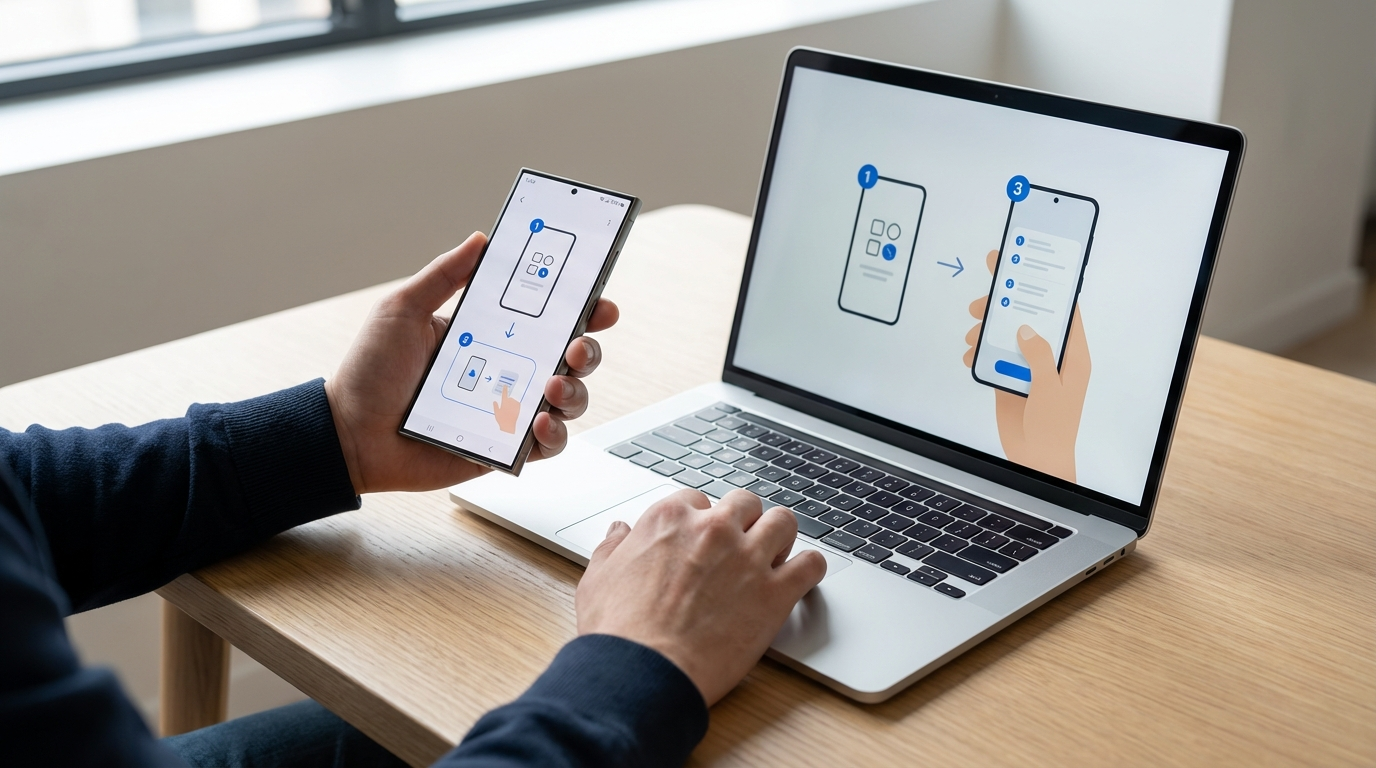
According to Privacy Laws, we will never handle your personal data, which means we can’t back it up for you either. So, to help yourself, follow the link for your device below and follow the steps.
However, we can help you transfer your files to your new device upon your request. If you choose this, then you can skip to step 4.
Apple Devices
iPhone, iPad, iPod Touch
How to back up your iPhone, iPad, and iPod touch Transfer data from your previous iOS or iPadOS device to your new iPhone, iPad, or iPod touch
Apple Watch
Back up your Apple Watch
Mac
Back up your Mac with Time Machine
Samsung/Android Devices
Samsung smartphones & tablets
Back up and restore data or files on your Galaxy device. Back up your Galaxy device if you can’t access it Transfer content with Samsung Smart Switch
Android smartphones & tablets
Back up or restore data on your Android device
Android base smartwatches
How to back up data stored on Samsung Galaxy Watch
Other devices
Windows computers (HP, Asus, Dell, Lenovo)
Check your Windows version via the first link before moving on to the second link. See which version of Windows you have Back up and restore in Windows
PlayStation 4
How to back up and restore PS4 console data
Step 4. Disconnect your item from any user account or eSIM
If an iCloud, Google, or Samsung account or eSIM is still active when you send your item, it’ll result in significant delays in processing your exchange.
Whether you’d like a refund, repair, or exchange, there are several reasons we ask you to deactivate your user accounts and eSIM:
To protect your data and privacy
To make it possible for another person to use the device if it’s resold
WARNING: You must deactivate your user accounts and eSIM to successfully return a device (e.g. smartphone, laptop, tablet)
How to deactivate your user account
For Apple Watches, follow these guidelines: What to do before you sell, give away, or trade-in your Apple Watch, or buy one from someone else
To remove your AirPods or Beats headphones from Find My, unpair them from Bluetooth settings on each of your devices, then remove them from your devices list
For other Apple devices (iPhone/iPad/MacBook), follow this step-by-step guide:
Samsung devices
Google Pixel devices
Learn how to prepare your Mac
Learn how to prepare your PC
How to disconnect your eSIM
If Your phone still turns on:
You have two options to remove the eSIM:
Option 1: Go to "Settings" > "Mobile Data" > "Delete eSIM"
Option 2: When you restore your device, you can choose to erase your eSIM
If Your phone won’t turn on:
When the phone doesn’t turn on, you will have to contact your carrier to disconnect the eSIM from your broken device.
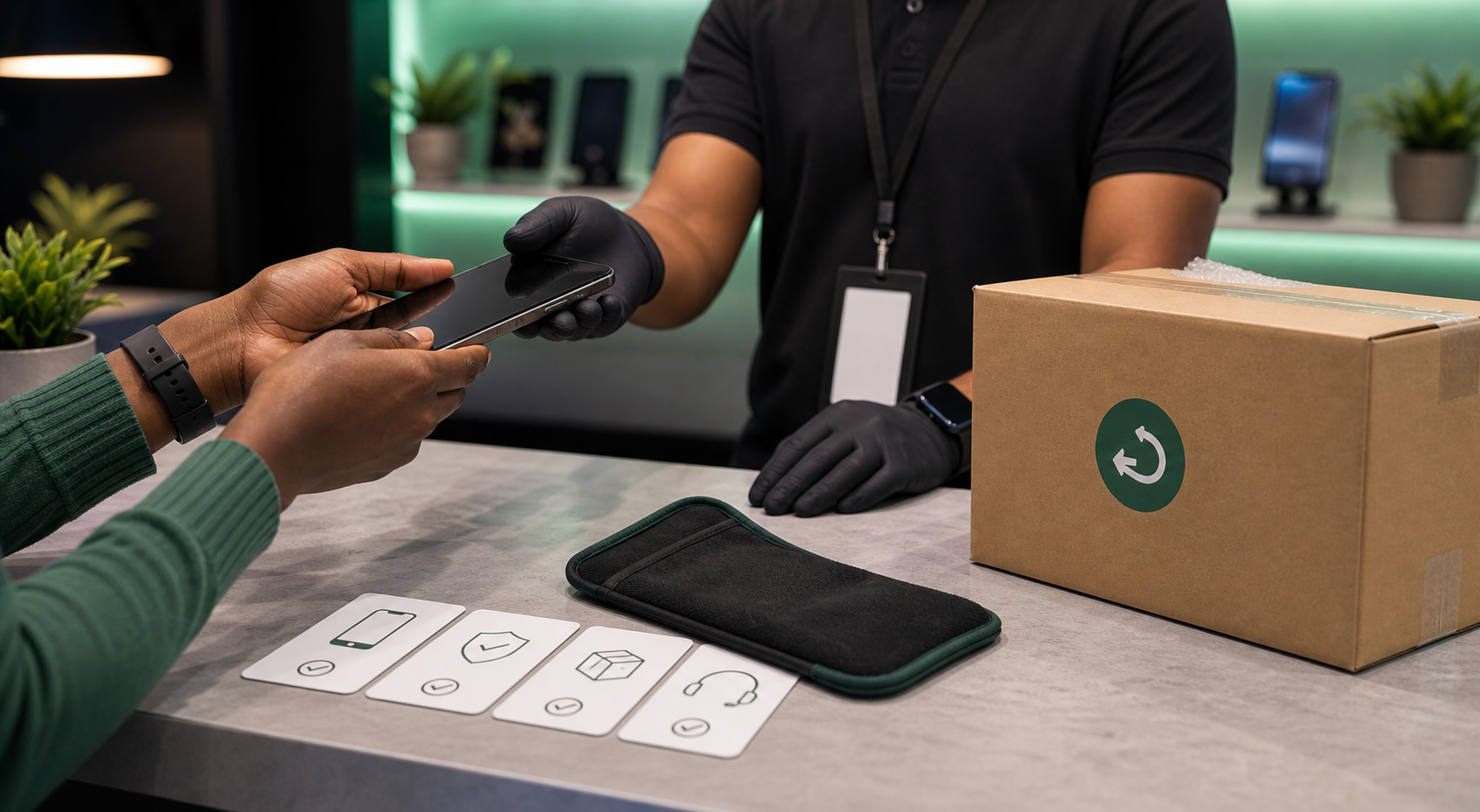
Step 5. Pack your item according to our instructions and ship to us.
Electronics need to be packed properly to ensure that your valuable item arrives to us undamaged. Here are some basics of good packing:
Use packing materials such as bubble wrap, airbags, cardboard, or foam to wrap and/or securely position your item inside the box so that it won’t move during transit.
Use pressure-sensitive tape, and be sure to protect all corners and seams (center and edges).
To be super safe:
Take photos of the inside of your package and the outside. There's no need to send the photos to us at this point, but they're handy to have in case of a dispute with the shipping provider.
Ask at the drop-off point for proof that you have handed over the package (This could be a piece of paper.)