Who this is for
A slow computer can make even simple work feel like punishment. You open Chrome, a few Word documents, WhatsApp Web, maybe Spotify, and suddenly the laptop is breathing like it just ran inter-house sports. Before you spend money on a new machine, check whether your current PC is worth saving.
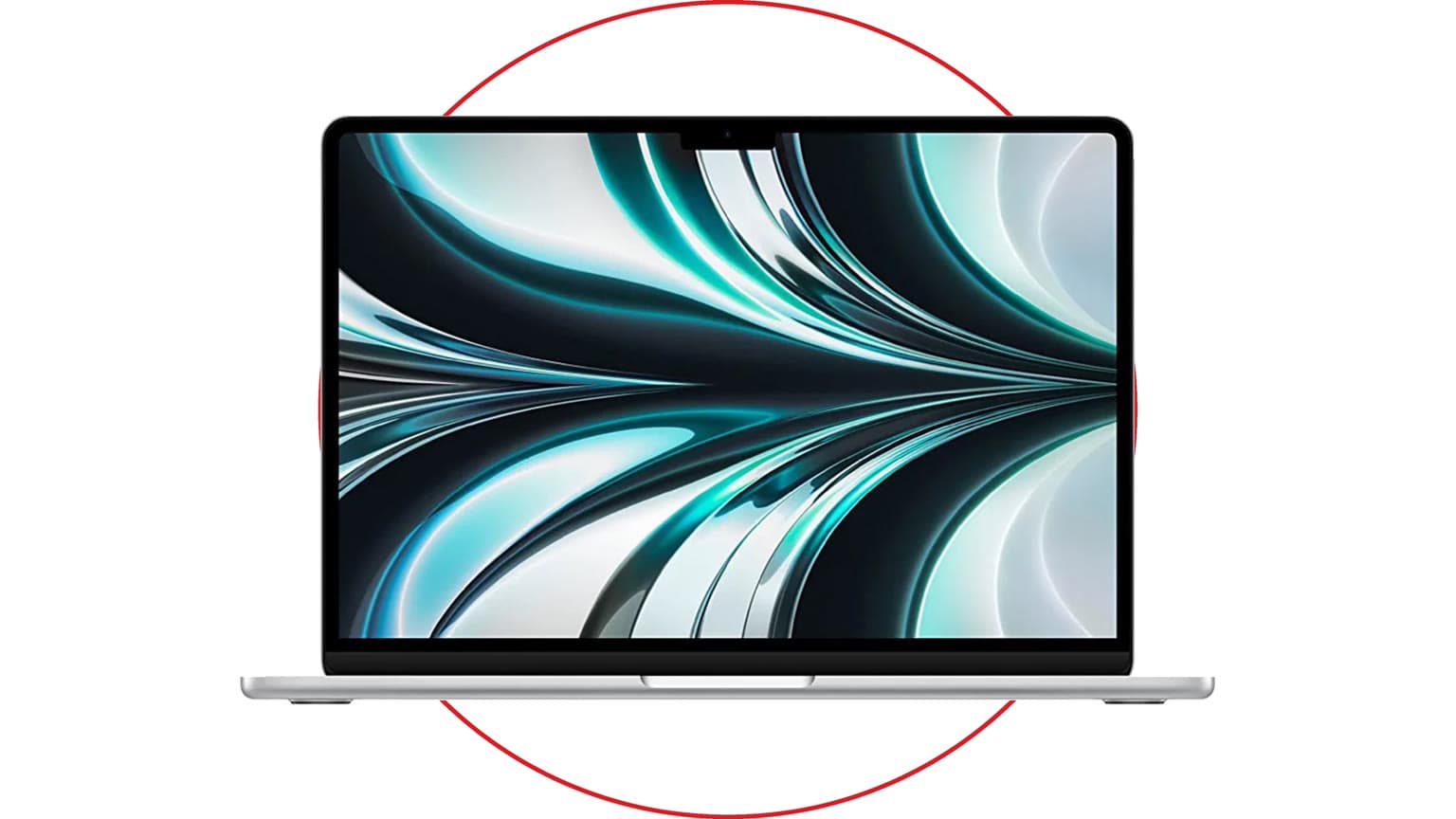
This guide is for Windows laptop and desktop users whose systems feel slow during boot-up, browsing, office work, school work, light design, coding, or casual gaming. It also helps Mac users understand one important limitation: most modern MacBooks and Apple silicon Macs are not designed for after-purchase RAM or storage upgrades, so the better decision may be repair, cleanup, or replacement instead of DIY hardware work.
The short verdict: if your laptop still uses a hard disk drive, an SSD upgrade is usually the biggest speed improvement. If your RAM is 4GB or 8GB and your device supports memory upgrades, more RAM can make multitasking feel much smoother. If the laptop is too old for Windows 11, has a weak processor, poor battery, damaged hinges, or soldered parts, buying a newer system may give better long-term value. Ogabassey can help you compare upgrade value against a newer laptop with flexible payment options through the Ogabassey gadget store.
Quick diagnosis before you buy anything
Do not start by buying parts blindly. First, press Ctrl + Shift + Esc on Windows and open Task Manager. Watch CPU, Memory, Disk, and GPU usage while the PC is slow. If Disk is stuck near 100% on an HDD, move SSD upgrade to the top of your list. If Memory is constantly above 80% with normal apps open, RAM is your priority. If CPU is always high even with few apps open, your processor may be the main limit.
Also check your current specs. On Windows, go to Settings > System > About for processor and RAM, then Settings > System > Storage for drive space. For the drive type, open Defragment and Optimize Drives; Windows usually labels the media type as hard disk drive or solid-state drive. For exact upgrade compatibility, search your laptop model plus “service manual” or check the manufacturer support page. RAM type, maximum capacity, and SSD slot type matter.
1. Swap your hard disk drive for an SSD
If your PC still boots from a mechanical HDD, replacing it with an SSD is the most meaningful DIY upgrade. An HDD has moving parts and is slow at the random reads and writes Windows does all day. An SSD has no spinning platter, so booting Windows, opening apps, switching tabs, loading games, and resuming from sleep usually feel much faster.
Compatibility is the part people miss. Older laptops often use a 2.5-inch SATA SSD, which replaces the old 2.5-inch hard drive. Newer laptops may use an M.2 SSD, but M.2 is only the shape; the drive can be SATA or NVMe. NVMe is faster, but your laptop must support it. Check the manual before buying. If your current drive is small, consider at least 500GB for normal use and 1TB if you store games, videos, design files, or a large photo library.
For value, this is usually the safest spend on a laptop that is otherwise healthy. If the screen, keyboard, battery, and hinges are fine, an SSD can extend useful life. If the laptop has a very weak processor, 4GB soldered RAM, and no Windows 11 support, the SSD may still help, but it may not be the smartest long-term investment.
2. Increase your RAM if the laptop supports it
RAM does not make a slow hard drive fast, but it helps your PC keep more work open without constantly swapping data to storage. In 2026, 8GB is the practical floor for light Windows use, but 16GB is the better target for students, office users, browser-heavy work, light editing, coding, and most casual gaming. Heavy video editing, virtual machines, large design files, engineering tools, and serious gaming may justify 32GB or more.
Before buying RAM, confirm three things: whether the RAM is upgradeable, the supported DDR generation, and the maximum capacity. A DDR4 laptop cannot use DDR5 RAM, and a laptop with soldered memory may not have any free slot. Many slim Windows ultrabooks and most modern MacBooks are not upgrade-friendly. Apple silicon Macs use unified memory that is configured at purchase, so treat memory choice as a buying decision, not a future upgrade.
If you have one 8GB stick and an empty slot, adding a matching 8GB stick can be a good value move. If your laptop has 4GB soldered plus one slot, an upgrade may still help, but check the manufacturer’s maximum supported size. For warranty, be careful: some laptops allow user-accessible RAM upgrades, while others require authorized service. If your device is still under warranty, ask before opening it.
3. Use Storage Sense, Disk Cleanup, and startup control
Not every speed fix requires a screwdriver. Windows can slow down when the system drive is nearly full, temporary files pile up, or too many apps launch at startup. Microsoft now pushes Storage Sense and Cleanup recommendations as the more modern way to free drive space, while Disk Cleanup still exists for older workflows.
Start with Settings > System > Storage. Run Cleanup recommendations, remove temporary files you understand, uninstall apps you no longer use, and move large videos or archives to an external drive or cloud storage. Be cautious with Downloads if you use that folder for important files. Keep enough free space for Windows updates and app caches; a constantly full SSD can also hurt responsiveness.
Next, open Task Manager and check Startup apps. Disable launchers, messengers, updaters, and helper apps you do not need immediately after boot. This will not turn a weak PC into a workstation, but it can make startup faster and leave more memory for the work you actually want to do.
4. Clean the cooling system and stop thermal throttling
Your laptop may not be slow because it lacks power. It may be slow because it is too hot. When dust blocks vents or the fan cannot move air properly, the processor protects itself by reducing performance. That is thermal throttling, and it can make a capable laptop feel weak during Zoom calls, gaming, editing, or even heavy browsing.
Clean the outside vents first. Shut the laptop down, unplug it, and use short bursts of compressed air through the vents. If you know what you are doing, you can open the bottom cover and clean the fan area more thoroughly. If not, use a repair technician, especially for thin laptops, gaming laptops, or devices still under warranty. Avoid blowing dust deeper into the fan, and do not spin fans aggressively with compressed air.
A cooling pad can help some laptops, but it is not a real fix for blocked vents, dried thermal paste, or a failing fan. If the laptop suddenly shuts down, the fan grinds, or temperatures spike immediately after boot, treat it as a repair issue, not just a performance upgrade.
5. Replace the PC when upgrades no longer make sense
Sometimes the real upgrade is a newer system. Windows 10 reached end of support on October 14, 2025, and in 2026 that matters for security and software compatibility. Microsoft offers Extended Security Updates for eligible Windows 10 PCs, but that is a temporary bridge, not a reason to keep an unsuitable machine forever. Windows 11 officially requires modern hardware, including TPM 2.0, Secure Boot support, at least 4GB RAM, and 64GB storage, but practical comfort is higher than the bare minimum.
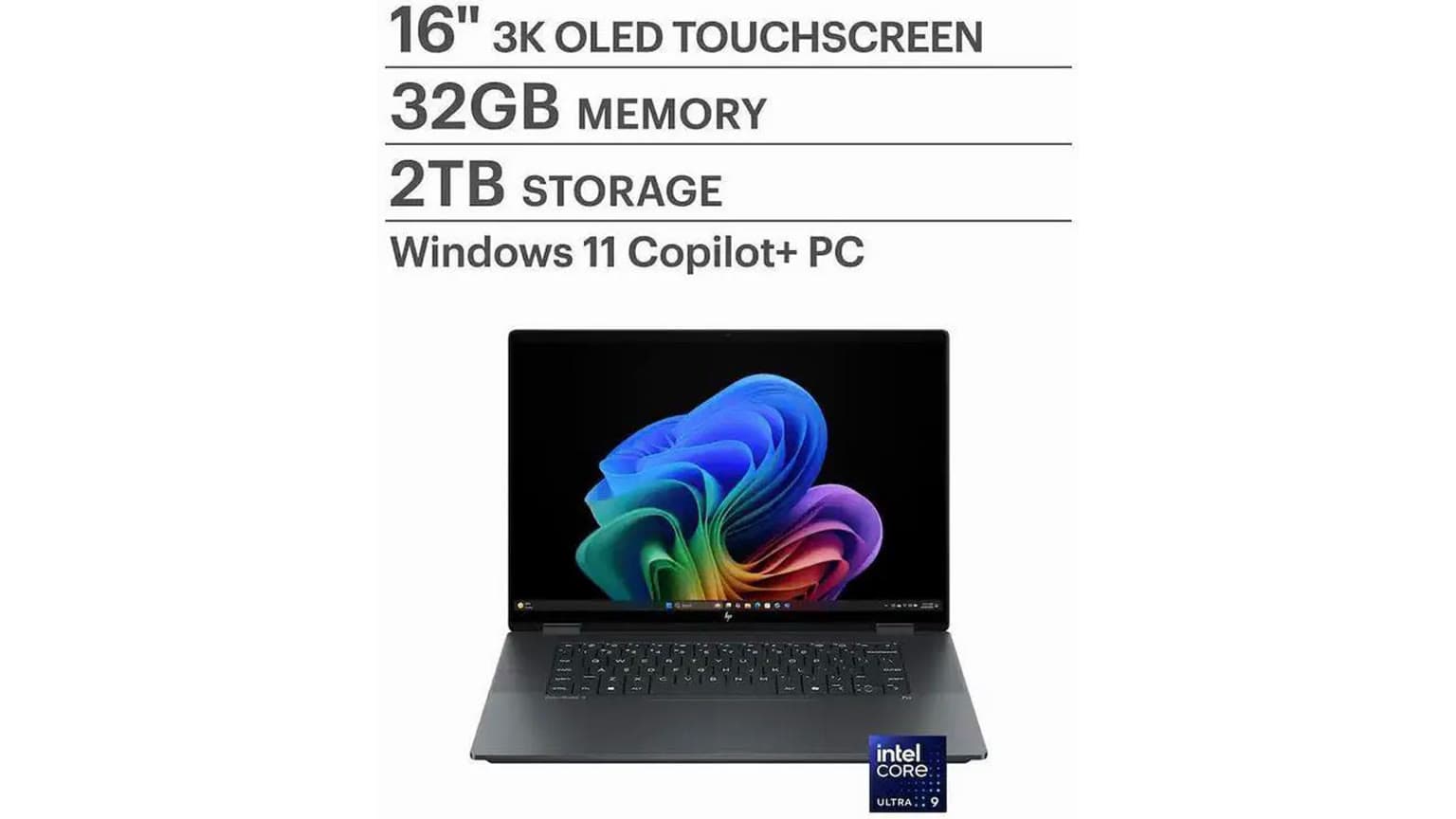
Replace instead of repair if your PC has several of these issues at once: unsupported processor, 4GB soldered RAM, eMMC storage, no SSD slot, bad battery, cracked screen, weak hinges, dead keyboard, or repair costs that approach the price of a cleaner used or new laptop. A newer model also brings better battery life, Wi-Fi, webcam quality, USB-C charging on many models, stronger integrated graphics, and longer software support.
If you are buying for a parent or someone who just needs a dependable everyday device, prioritize SSD storage, 16GB RAM where budget allows, good battery health, and a comfortable screen over flashy specs. Our guide to tech gadgets that make parents’ lives easier can help if the laptop is part of a wider setup. If you are shopping for a gift, the ideas in Ogabassey’s gadget gift guide for him may also help you compare practical device upgrades.
Trade-offs and warranty notes
DIY upgrades save money, but they are not risk-free. Opening a laptop can void warranty, damage clips, disconnect ribbon cables, or expose components to static discharge. Cloning a drive can also carry over old software problems, so a clean Windows install may feel better than copying everything from a messy old HDD. Always back up important files before storage work.
SSD upgrades are usually the best performance-per-naira move, but they do not fix a weak CPU or a dying battery. RAM upgrades help multitasking, but they do not help much if your normal work already fits comfortably in memory. Cleaning helps overheating, but it will not make an entry-level processor behave like a workstation chip. The best decision is the one that matches the actual bottleneck.
Alternatives
If you cannot upgrade hardware now, you still have options. Use Storage Sense, remove unnecessary startup apps, uninstall heavy software, keep Windows and drivers updated, use lighter browser extensions, and close tabs you do not need. For very old hardware that cannot run a supported Windows version well, a lightweight Linux distribution may be useful for browsing and documents, but only choose that route if the apps you need are available or web-based.
If you depend on Microsoft Office desktop apps, Adobe tools, accounting software, school exam software, engineering apps, or Windows-only business tools, do not switch operating systems casually. In that case, a supported Windows 11 laptop is the cleaner path.
Verdict
For most slow PCs, upgrade in this order: diagnose the bottleneck, install an SSD if you still use an HDD, move to 16GB RAM if your laptop supports it, clean storage and startup apps, then fix cooling. If the machine is unsupported, physically worn out, or locked down with soldered low-end parts, stop spending on patches and put that money toward a newer laptop.
Need help deciding whether to repair, upgrade, or replace? Compare the cost of parts and labour with current laptop options on the Ogabassey store, especially if paying in instalments makes a newer, more reliable machine easier to manage.
Shop related Ogabassey options: Ogabassey laptops.
Sources